Trains
You configure trains in your account on the Panels DCC website — in the cloud, from any browser, away from the layout if you like. Think of it as managing a library of your collection: locomotives, and also coaches and wagons if you want them recorded the same way.
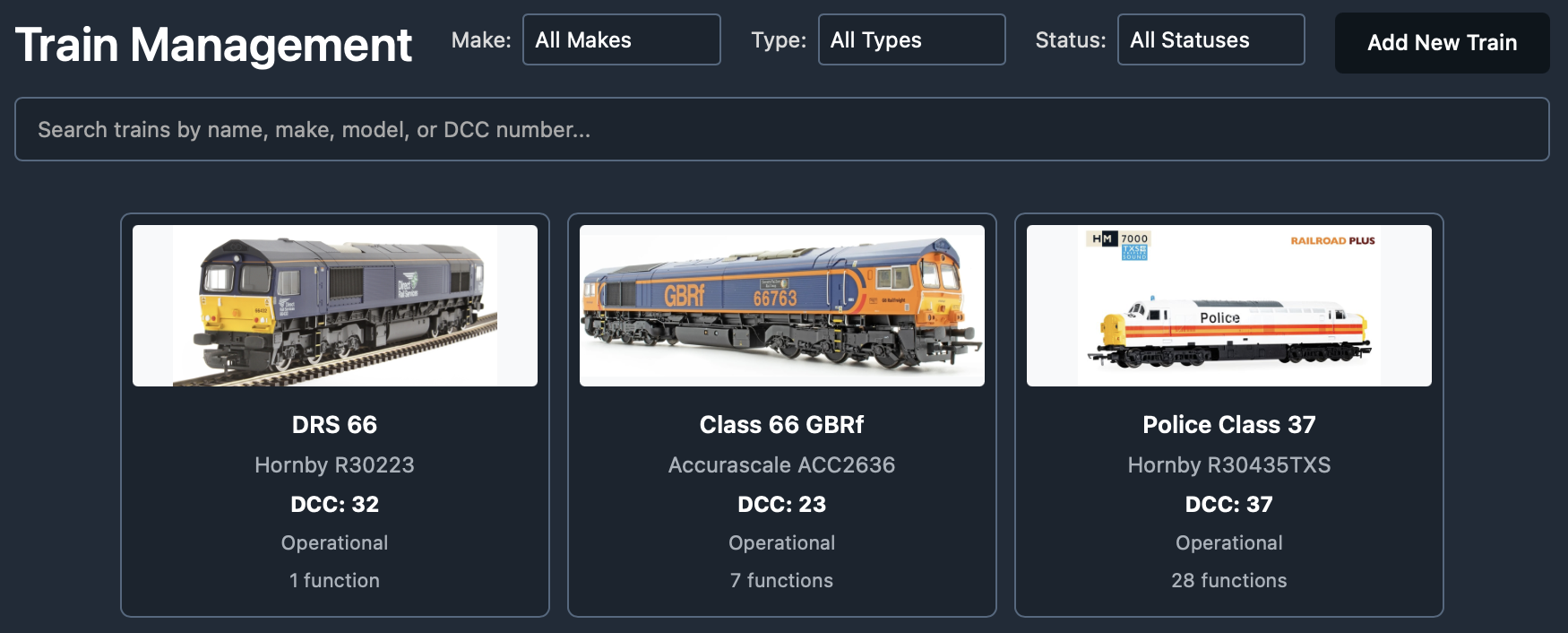
The library is deliberately visual. Each item is a card with a picture and a short name, so when you later open PanelsDCC Control and choose Load from engine shed, you pick something you recognise rather than typing a DCC address from memory.
Once you have more than a handful of items, use the tools on the list page:
- Search — type part of a name, make, model, or DCC number.
- Make, Type, and Status filters — narrow the grid (for example only Operational diesels from one manufacturer).
On a phone, filters may sit behind a filters button rather than along the top of the page. Click a card to open that train for editing.
How to configure a train
Each train (or coach / wagon) holds several kinds of information:
- Metadata and picture — short and long names, make, model, type, status (for example Operational), and an image so the collection is easy to browse.
- DCC fitting notes — whether the model is DCC ready or fitted, what decoder is in it, where the socket is, and similar notes for your own records.
- DCC configuration — the address you drive it on, and the list of functions (lights, horn, and so on) with icons and names, not just F0, F1, F2…
To make that practical, Panels includes a large library of currently UK trains and a library of function maps (ready-made lists of functions for common decoders and models). If your model is not in the train library, you can enter the details by hand and upload a picture. If no function map fits, you can build a new one, copy an existing map and change it, and upload your own icons.
The steps below walk through adding one item to your library. You can edit an existing train the same way: open it from the list, change what you need, and save.
Step 1: Add New Train
Open trains on the Panels DCC website
Sign in to the Panels DCC website if you are asked to. Open Trains (or use the link above).
Click Add New Train.
The new-train form opens with Quick add at the top and the main sections below.
Step 2: Quick add, or fill in the details yourself
At the top of the new-train form is Quick add. Start typing a description — a class, running number, catalogue code, or plain words such as “Class 66”. Matching entries from the UK train library appear as you type. Pick one and the form fills in short name, long name, make, model, type, and often a picture.
If nothing matches, fill the form yourself. The important fields are:
- Short Name (required, up to 20 characters) — the label you will see on the Control throttle and in the engine shed. Keep it short and distinctive if you have several similar locos.
- Long Name — a fuller description for your own records.
- Make and Model — manufacturer and catalogue or class detail; useful when filtering later.
- Type — Steam Engine, Diesel Loco, EMU, Coach, Wagon, and so on. Coaches and wagons belong in the same library if you want them listed visually with the rest of the collection.
- Status — for example Operational, Non operational, or Static. Use this to mark locos you are not currently running without deleting them.
Step 3: Picture
A clear picture makes the engine shed and throttle much easier to use at a glance — especially on a tablet across the room from the layout.
You can:
- Upload a photo from your device, or
- Click Search for Images, browse the results, and choose one.
If Quick add already attached an image, you can still replace it. Prefer a side-on or three-quarter view so the model is recognisable among similar liveries.
Step 4: DCC and decoders
Enter the locomotive’s DCC Number (1–9999). This must match the address programmed on the decoder. Control uses this number when you load the train from the engine shed or when you enter the address directly for a quick test.
DCC Status is a note for you — for example Ready, Fitted, No socket, or Incompatible. It does not change how Control drives the loco; it helps you remember which models are actually fitted and which are still analogue or unconverted.
Under DCC Decoders you can optionally record fitting detail for your own reference: socket location, socket type (for example 21 Pin or Next 18), chip model, and chip type (motor/function, multifunction sound, and so on). A locomotive can have more than one decoder entry if that matches how it is wired. None of this is required to drive — skip it if you only want the address and functions set for Control.
Step 5: Configure functions
If your train has functions — sounds, lights, and so on — you configure them with function maps.
A function map is a pre-configured list of functions you can assign to a train. Instead of specifying every function by hand, you load, reuse, and edit an existing map that is exact or close enough to what you need.
Every function also has icons for its on and off state. When you control the train, you click named functions with clear visual indicators — not a row of numbered keys. No more hunting for the paperwork that says which function does what. For example:

 Lights (off / on)

 Horn (off / on)
Before you finish configuring a train, browse the function maps library to find or set up the map you need. Many maps for DCC-fitted models from leading UK manufacturers are already provided.
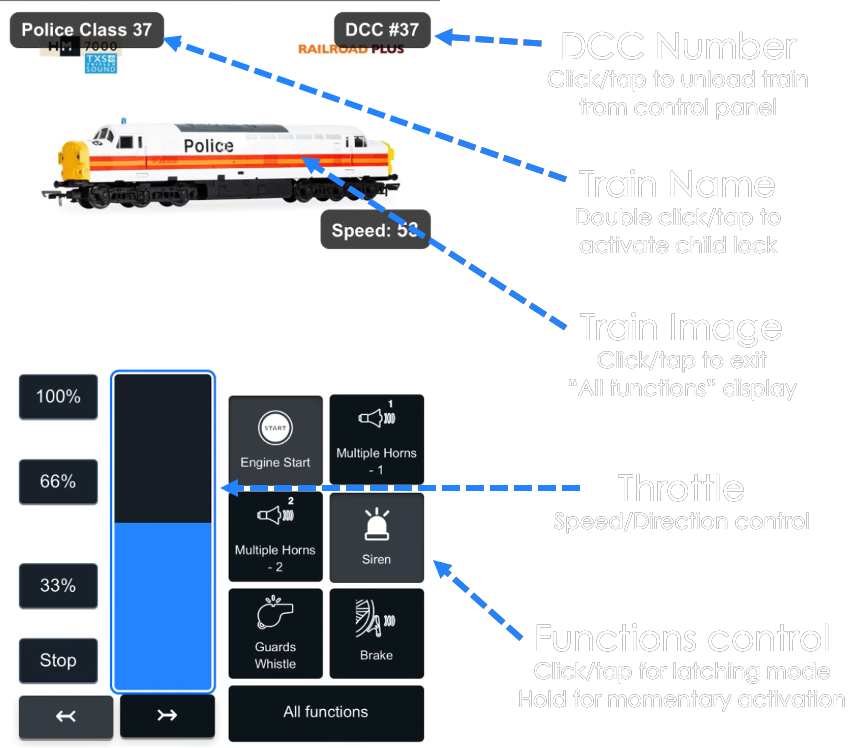
Click Load Function Map, pick the map that matches your model, then adjust it if you need to. You can reorder the list so the functions you use most sit at the top. In Control, the first six appear on the main controller — and those can be whichever functions you want, not locked to F0–F5.
To browse or build maps of your own, see Function maps. To add a custom icon when the library does not fit, see Functions.
Step 6: Save and confirm
Click Create Train (or Save Changes when editing). You should return to the train list with the new card visible — picture, short name, and key details as you left them.