Accessories
Points, signals, crossings, and other layout items are configured on the Panels DCC website. Each accessory has a name, a type that looks like the real thing, and a DCC number/state for control.
Open accessories on the Panels DCC website
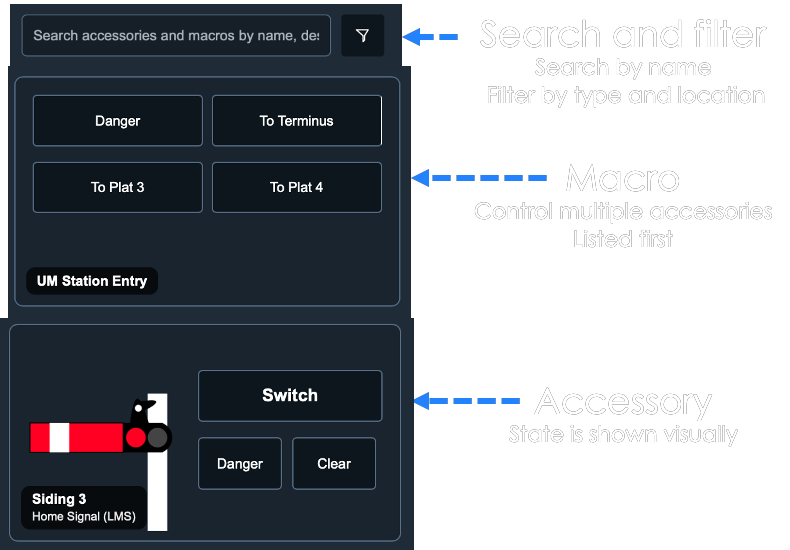
Step 1: Choose a type
Click Add New Accessory. You first pick a type from the library of built in accessories, or you can also create a custom accessory.
Some of the built in accessories are:
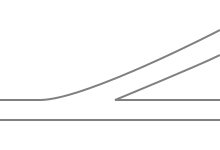 Point / Turnout
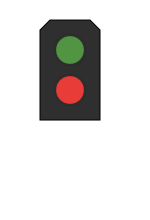 Colour signal
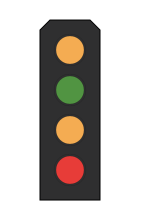 Four aspect
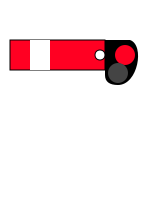 Semaphore
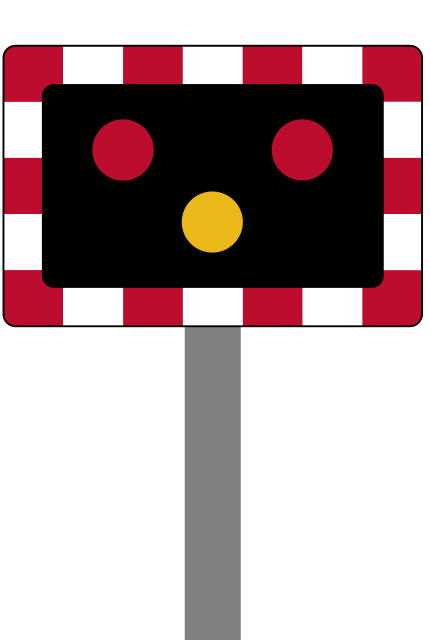 Open / closed
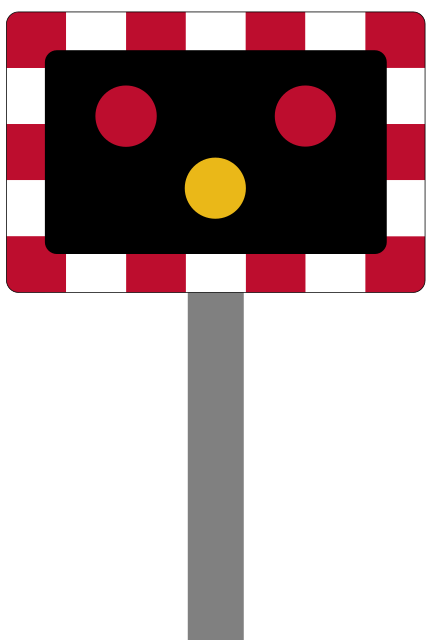 Level crossing
 Custom
Once you pick the main type, e.g. semaphore signal or point or turnout, you can then pick a subtype if available. For example, a semaphore signal can be a home signal, and upper quadrant (LMS) and lower quadrant (GWR) types are avaialble. Likewise digital signals and points have different subtypes.
Step 2: Name and picture
Give the accessory a short Name (required, up to 20 characters) — something you will recognise on a panel, such as “P1” or “Up home”.
Step 3: Options and DCC numbers
Having selected the accessory subtype, the required states will be shown and you can then enter the DCC number and state for each. (How those numbers and states work is covered under DCC numbers and the audit table below.)
When configuring accessories for the first time, it is often easier to configure the accessory first in PanelsDCC and then programme the accessory on the layout using the accessories learning feature (if available).
Step 4: Save and repeat
Click Create Accessory. Add the other points and signals you will place on a panel next. You can also create an accessory later from the panel editor if you realise something is missing — see Panels.
When you want one command to set several accessories together, see Macros.
Managing lots of accessories
In DCC, an accessory is controlled by an accessory number and a state. That address space is separate from trains, so an accessory can reuse a number that a locomotive already has.
Each accessory number has two states. Controllers may call them forward/reverse or open/closed; Panels DCC uses forward and reverse. When you configure an accessory, you map each visual state (normal/thrown, red/green, and so on) to a number and a direction.
Many accessories need more than one DCC number and this makes it confusing to manage and remember what is what. For example a three-aspect signal typically uses two DCC addresses, but only three of the four states (the first DCC address and two states for danger/red and caution/amber, and the second DCC address and one state for clear/green).
To make it easier to manage accessories, PanelsDCC provides a Table View of the accessories and their DCC numbers and states. This allows you to audit which DCC numbers you have aassigned to what and spot any clashes.
Note: In many cases, to make things easier, you can point several accessories at the same number and state so one command flips many things. Panels DCC allows this, but it is clearer to give each accessory its own numbers and use macros when you want one tap to move several items.