Configure Wi‑Fi
Step 1: Open Connect, then the Wi‑Fi tab
On a phone, laptop, or the Pi (same network as the Pi), open Connect below. In the Connect window, select the Wi‑Fi tab — that is where the rest of this page happens.
PanelsDCC Connect
Port 9000 — after it loads, use the Wi‑Fi tab (not Control).
Use the same hostname as in Raspberry Pi Imager (we recommend panels-dcc). You can also enter a .local name or IP address. Your choice is saved in this browser.
Step 2: Client mode or hotspot mode
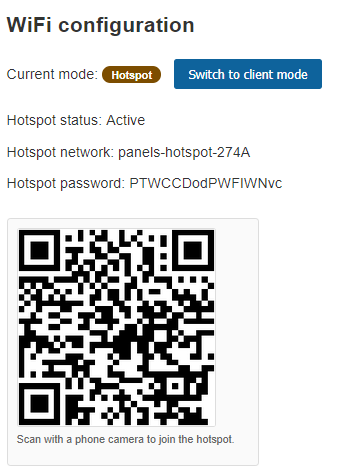
- Client mode: the Pi joins a Wi‑Fi network you’ve saved (for example your home layout network).
- Hotspot mode: the Pi creates its own hotspot so phones and tablets can connect directly — handy at shows or when there is no trusted network.
When you leave the area of your saved networks, Connect will automatically switch to hotspot mode.
Step 3: Hotspot QR code
Connect shows a QR code so camera-equipped devices can join quickly. Consider printing it and keeping it on or near the Pi case.
Step 4: Add or update known networks
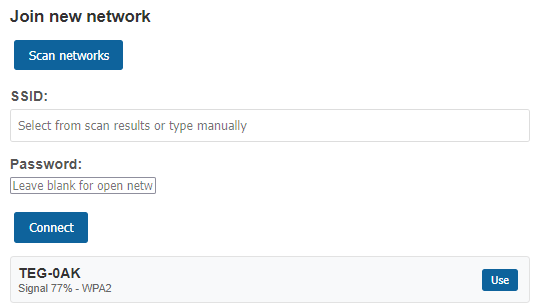
From the Wi‑Fi tab, scan for nearby networks, pick one, and enter the password to save it as a known network for later sessions. Update this list when your venue or home network changes.