Panels
A panel is the diagram you will operate from in PanelsDCC Control — a signal-box style picture of your layout, not a scale track plan. You draw it on the Panels DCC website, then link points and signals to the accessories you have already created.
Open panels on the Panels DCC website
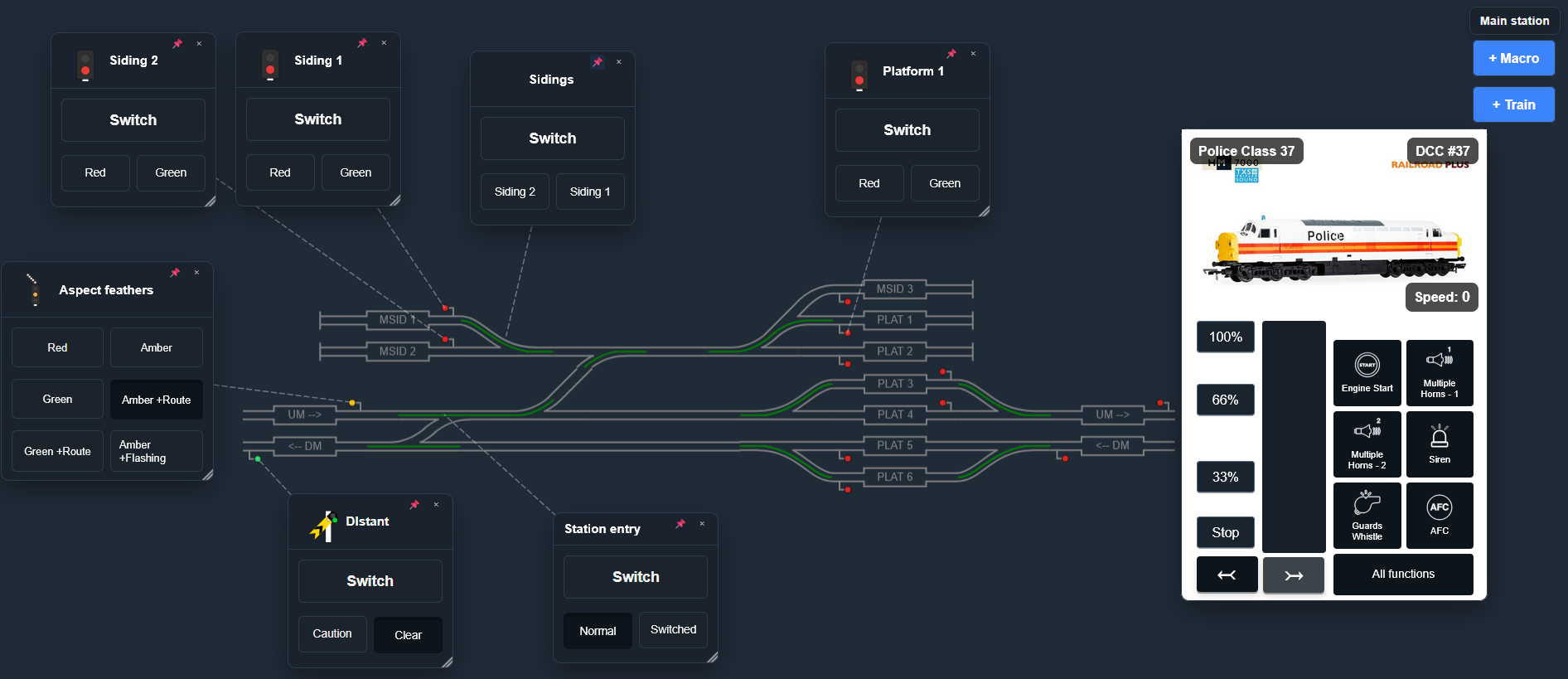
Step 1: Create a panel and name it
On the panels list, click Create New Panel. Type a name at the top of the editor (and a description if you like). Width and height can wait — Resize to Fit later will tighten the canvas around what you have drawn.
Step 2: Place track from the toolbar
The left toolbar is grouped into plain line, level crossing, and points. Click a piece to drop it on the canvas, then drag it into place. Pieces snap together when their ends are close.
 Curve
Curve
 Dead end
 Normal point
 To straight
 To siding
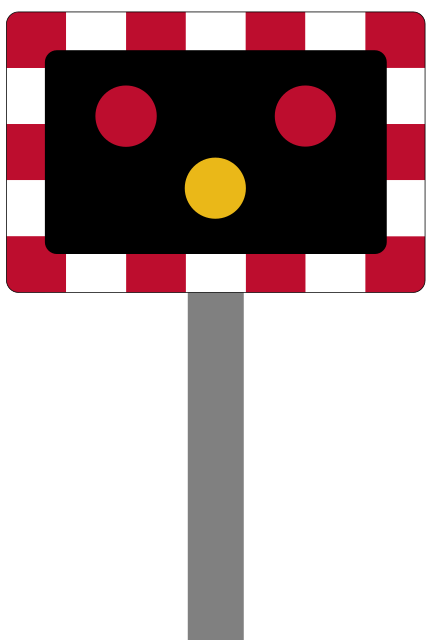 Level crossing
- Straight — ordinary track.
- Section — a labelled berth (the piece you copy later if you need the same berth on another diagram).
- Curve, Diagonal, Dead End.
- Points — Normal, To Straight, To Siding, Crossover.
- Level crossing.
Step 3: Select, grow, flip, and rotate
Click a piece to select it. The ribbon’s Transform group then becomes available:
- Grow / Shrink — lengthen or shorten a straight.
- Flip H / Flip V — mirror the piece.
- Rotate — turn through 90° steps (where the piece allows it).
Keyboard shortcuts (when you are not typing in a field): + / - grow and shrink, H / V flip, R rotate, C configure, Delete to remove. Press ? in the editor for the full list.
Step 4: Configure — link or create an accessory
Select a point or signal and click Configure (or double-click the piece). You can:
- Link an accessory you already created on the Accessories page, or
- Create a new accessory without leaving the editor — handy when you realise a point has no DCC item yet.
Markers on the diagram show which pieces still need configuration. Use Hide Config Status in the ribbon when you want a cleaner view.
Step 5: Save
Click Save in the ribbon. Use Resize to Fit so unused canvas does not dominate the Control view. You can duplicate a whole panel from the panels list if you need a second diagram of the same area.
When Control has synced, open Chapter 3 — Panels to operate the diagram. Panel arrangement on each tablet or browser is local to that device.
Advanced: Copy and paste sections
A Section is the labelled track berth from the toolbar — not a plain Straight. Select one section, then:
- Right-click and choose Copy section, or press Ctrl/Cmd+C.
- Paste with Ctrl/Cmd+V, or right-click and Paste section.
Paste on the same panel, or open another panel in the same browser tab and paste there. The copy remembers the section’s name and settings for that session.