Connecting your DCC controller/s
Step 1: Open PanelsDCC Connect
On your layout network, use the address with port 9000 (or the desktop shortcut on the Pi). Wi‑Fi details are on the Configure Wi‑Fi page if you need them first.
Open Connect on your network
Port 9000 — on the Raspberry Pi desktop you can also launch the PanelsDCC Connect shortcut.
Use the same hostname as in Raspberry Pi Imager (we recommend panels-dcc). You can also enter a .local name or IP address. Your choice is saved in this browser.
Step 2: Plug in and attach your hardware
Physically connect your command station to the Pi (usually USB for the setups we document). Power on the command station.
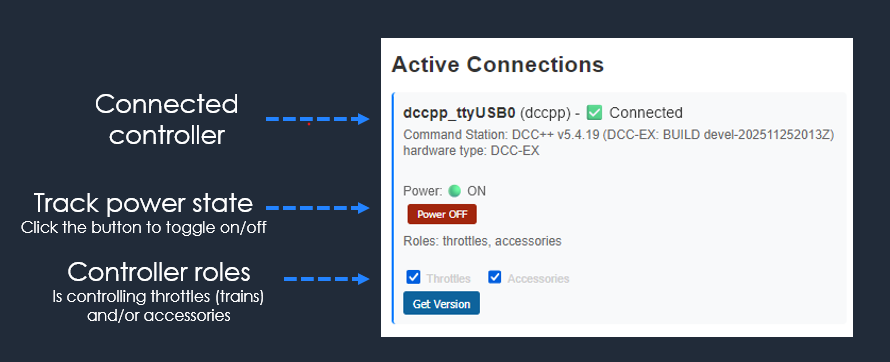
DCC-EX CSB1 via USB (dccpp-ex-usb) and Hornby Elite / XpressNet via USB (xnet-elite) are implemented and working in Connect with zero-configuration support when detection succeeds — the connection is created for you and should show as connected. Other controllers use the same connection machinery; see the table below for status.
NCE PowerCab (serial or USB) and DCC++ over Ethernet are available to configure in Connect but are marked untested in our wider programme — you may get auto-detection or you may need the manual flow in Step 3. If you rely on an untested path, read the testing page first.
Controller support reference
The Zero configuration column shows whether Connect can detect and set up the device automatically. Untested means we still need more real‑world reports — plan on manual setup if auto-detection does not appear.
| Controller | Implemented in PanelsDCC Connect | Status | Zero configuration | Notes |
|---|---|---|---|---|
Hornby Elite / XpressNet (xnet-elite) |
Yes | Working | Yes | Auto-detects and should appear as connected when attached. |
DCC-EX CSB1 (USB) (dccpp-ex-usb) |
Yes | Working | Yes | Fully tested via USB. |
NCE PowerCab (serial) (nce-serial) |
Yes | Untested | Untested | Set up manually in Connect. |
NCE PowerCab (USB) (nce-usb) |
Yes | Untested | Untested | Set up manually in Connect. |
DCC++ (Ethernet) (dccpp-ethernet) |
Yes | Untested | Untested | Set up manually in Connect. |
Controllers listed as untested are implemented in software but still need wider validation in the field.
Step 3: Manual setup (only if you need it)
If Connect did not create a working connection automatically, create one explicitly:
- Auto-detected device: when detection works, configuration is applied for you — you should see it listed as connected.
- Manual setup: choose Create connection (or equivalent), then fill in connection type, port, baud, etc., as Connect asks.
For a manual connection, you will typically enter:
- Connection ID (example:
elite1) - Controller type (example:
Hornby Elite / XpressNet) - Port (serial/USB) or host and port (network)
- Baud rate and flow control where serial is involved
- Confirm or Create connection
Step 4: Assign controller role (optional)
Skip this if you only run one command station.
If you use two controllers (for example one for trains and one for an accessory bus), check how Connect has assigned roles: a second connection is typically treated as the accessories controller. Review role assignment whenever you power on hardware or after updates.
Step 5: Confirm everything works
In Connect, first make sure your command station appears as connected, with manufacturer/version details where available.
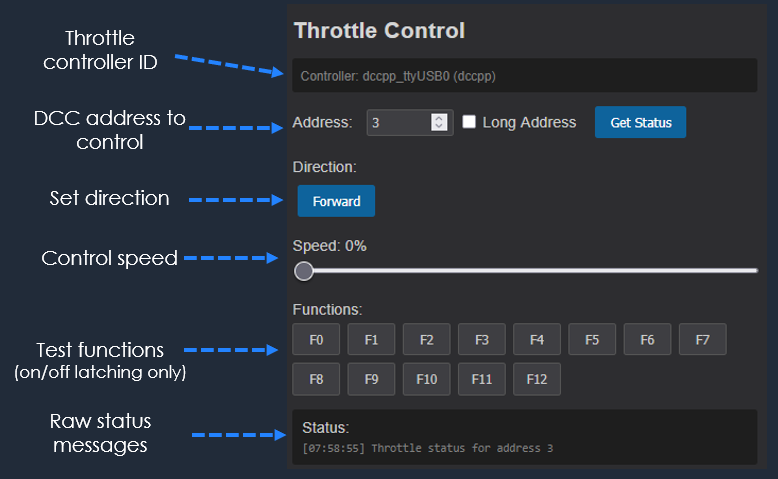
Test 1: Drive a train and check functions
Select a locomotive DCC number and run a short movement test. For first-time setup, use a low number if possible (for example 3, the common default).
Also test one or two latching functions only (for example lights on/off or sound on/off), so you can clearly confirm the state change in both directions.
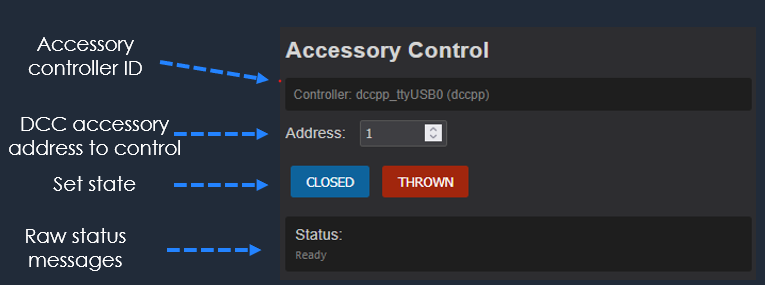
Test 2: Operate an accessory
Select an accessory DCC number, then set both states: closed/thrown (also shown as forward/reverse in some systems).
The easiest practical test is usually a point motor, or a simple two-aspect signal (red/green, danger/clear).
When that looks good, continue to driving from PanelsDCC Control in the next getting started step.