Trains
Train operation in PanelsDCC is built around loading a locomotive into a control panel, then driving speed, direction, and functions from one clear interface.
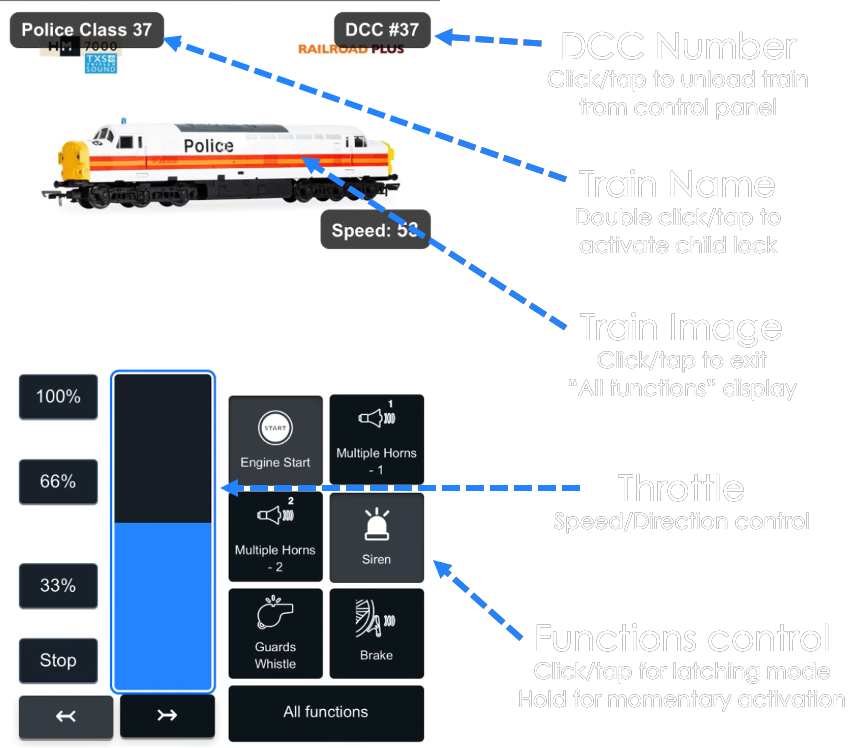
1. Load and unload trains
The number of control panels depends on your device. On phones, switch between control panels using the controls at the bottom. On tablets and desktops, scroll left and right to view multiple panels.
Each control panel works the same way. To load a train, choose Load from engine shed and select from your collection. If you already know the DCC address, choose the DCC number option and enter it directly. This is useful for quick tests and for locomotives not yet in your engine shed.
To unload a train from a control panel, click or tap the DCC number bubble in the top-right corner of that control panel.
2. Control train speed
Use the throttle to set speed. Quick speed-step buttons let you jump directly to 0%, 33%, 66%, and 100%.
3. Control functions
Six function buttons are shown beside the throttle. These are the first six functions in the locomotive configuration (normally F0-F5), unless you have reordered or removed functions in configuration.
Use All functions to open the full function list. This view hides the throttle. To return to the main control panel screen, click or tap the locomotive image at the top.
Function behavior depends on interaction type:
- Latching functions: quick tap or click to toggle on, tap again to toggle off.
- Momentary functions: press and hold to activate; release to deactivate.
4. Child lock mode
After loading a train into a control panel, double-click or double-tap the train name in the top-left corner to open the lock configuration popup.
You can choose what remains available in lock mode, including:
- Disable throttle control
- Disable direction control
- Limit maximum speed (for example to 33%)
- Disable selected functions
After choosing restrictions, set a PIN code to enable locking. When locked, the interface blocks navigation to other app areas, including other train panels.
To exit lock mode, tap the padlock icon in the top-right and enter the PIN. You can also refresh the browser or relaunch the app session.