Accessories
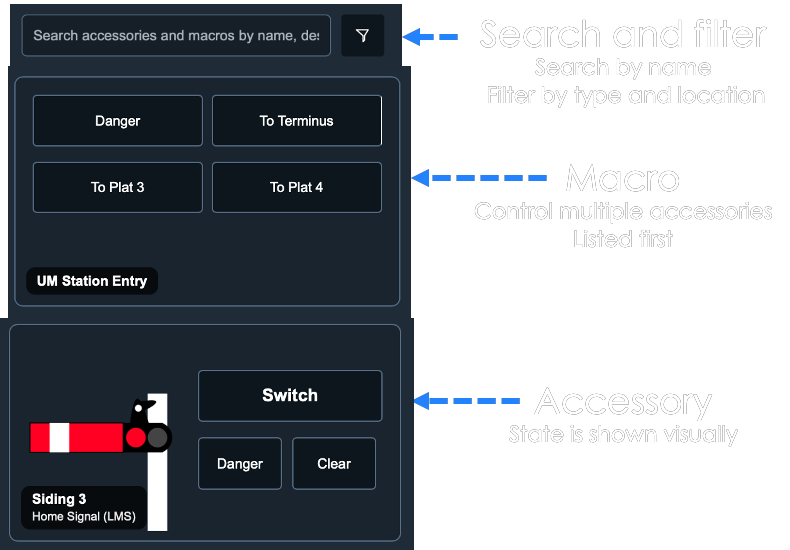
The accessories screen gives you a complete control list: every macro first, then every accessory.
This view works especially well on mobile. On desktop, many operators prefer to control accessories from panels (see the next section).
1. List order and navigation
Macros are listed first, followed by all individual accessories. Use this when you want to run a grouped action quickly before making individual changes.
2. Search and filtering
You can search accessories by name, and filter by type and location. Location filtering depends on accessory panel assignments in configuration.
3. Accessory state and reliability
At session start, initialize your layout so every accessory is set to a known state.
4. Using macros effectively
Macros are recommended for setting multiple accessory states quickly and consistently, especially during initialization.
Macro creation and setup are documented in Chapter 2 — Macros.
If needed, set a delay between macro steps in Settings to match how fast your layout hardware can process commands. This also helps sequencing, for example allowing points to fully move before signals are updated, which is useful with slow-action point motors.
5. Retrying accessory commands
Accessory buttons remain clickable after use, so you can retry any command if a turnout, signal, or other accessory does not switch on the first attempt.